

General Section in Studio
Within the Forms section in Pragmatic Studio, users have access to a variety of options to customize and adjust the general data of each form. This section, known as “General,” allows users to modify important information related to the form, such as the description, workflow, start and end dates for its use, column layout, among other settings.
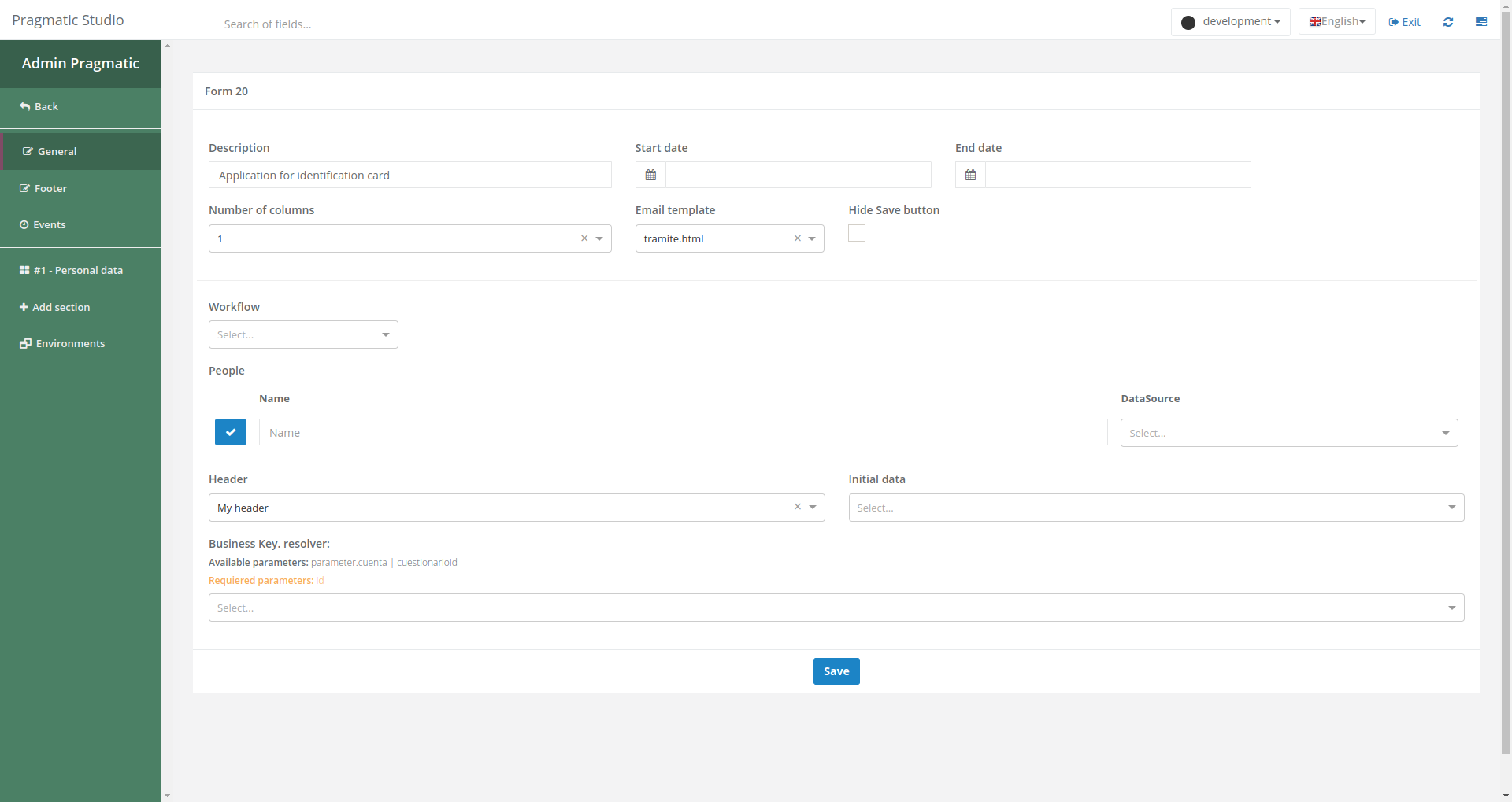
Fields
Description
One of the key options within the General section is the ability to provide a detailed description of the form. This allows users to add the form name.
Workflow
The form workflow defines the steps or actions that must be completed for the form to progress from one state to another. Users can configure and customize the workflow according to the specific needs of their process.
Start and End Date
Another important option is the ability to define a start and end date for the form’s availability. This allows users to control when the form will be active and ready for use, as well as when it will be deactivated and no longer available.
Number of columns
Users can also adjust the form layout by changing the number of columns in which the form fields are displayed.
Navigate to first empty field
This field allows you to configure whether the system should automatically navigate to the first field that doesn’t have any defined response when a user enters a form instance.
Hide actions
This option allows you to hide all available actions for the user in instances of this form. When enabled, it prevents saving data or executing any actions on the form. This setting is particularly useful for the List field type, as this field doesn’t save responses and is specifically designed for performing data searches through datasources.
Behavior after executing action
This combo field allows you to configure the behavior after executing an action in the form. It has two available options:
Go back: When pressing any of the available actions, the system will navigate back.
In the case of use from Pragmatic Studio, it returns you to the instances list.
In the case of a project using Pragmatic to render instances, this behavior is customizable as the Pragmatic component receives a method called
saliras a React code-level property, which is executed after the selected action has completed its specific processing. For more information on how to implement this method, see the React usage guide.Keep in instance: This option keeps the user in the current instance after executing an action, without executing any exit method or navigating elsewhere.
Hide Save button
This option allows hiding the save button from form instances, providing flexibility in form interaction.
Header
The header is a mandatory field that defines the information displayed in the form instance. For more information about headers, visit this link.
Initial data
Initial data is defined to be displayed at the start of the form instance for the user. For more information about initial data, visit this link.